Showing posts with label Tips. Show all posts

Saturday, January 16, 2016

How to fix your iPhone if it is slow

How to fix your iPhone if it is slow

Is your iPhone slow to respond? Trying to open an app and there is a delay? Just like a normal computer, sometimes a little maintenance can help speed up the OS. Here's a few tips that work for me.

 How to fix your iPhone if it is slow

Enter SETTINGS>SAFARI


Here you will find CLEAR HISTORY & CLEAR COOKIES AND DATA.


By clearing history, it will close all current browsing pages that you have open. Please save any unfinished work or bookmark pages that you do not want to lose BEFORE you click CLEAR HISTORY.


As the photo says, cookies and data helps speed up browsing, but it can also slow down your system by caching temporary files. Personally, I clear this weekly as regular maintenance.


Sometimes closing certain apps help to clear up system resources. To close running, suspended, or background apps, DOUBLE TAP the HOME button. This will pull up a list of running apps.


Press and hold down one of the app icons for two (2) seconds. The apps will start to wiggle and have a red minus sign on the left corner. Press the minus sign to shut down the app.


On another note, if an app isn't working properly, try closing it using this method and re-opening it again. Sometimes it just needs a restart.

Another tip is to do a hard restart on the iPhone. Do this by holding down the top lock button and home screen button until the phone turns off and the starting Apple appears on the screen.


Another tip I found to be beneficial is reducing the frequency that iOS checks for mail. You can find this in SETTINGS>MAIL,CONTACTS,CALENDARS

Scroll down to find the FETCH NEW DATA option. From here, you can reduce the time that your system checks for new mail. This also helps reduce battery drain.


Friday, January 15, 2016

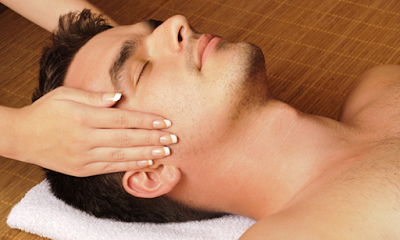
Easy Facial for Men

Easy Facial for Men

Facial for Men

Spas are not just for women anymore, these days more and more men are seeking out spa treatments! Some spas cater exclusively to men with high-tech amenities like flat-screen TVs that play sporting events, wireless Internet access, and IPod docking stations. Men's spas may have sleek interiors that incorporate stainless steel, leather, and wood and have full barber shop facilities and bars where men can unwind with snacks like chips and even beer!  


When you go:
Facials for men are specifically formulated to male needs, which are often shaving-related, such as razor burn, or other conditions like skin sensitivity and dullness. There are also men's facials that target skin roughened by spending time in the great outdoors and ones that are tailored to acne, excessive sweating, living in a city, and skin conditions related to aging. Deep-pore cleansing, moisturizing, exfoliation, toning, and vigorous facial, neck, and shoulder massages are sometimes included during men’s facials, which usually last from 30-minutes to a few hours long. Different products are used for men's and women's facials, and when essential oils are used, more traditionally masculine scents are the norm and masks, lotions, and hot towels are often utilized. Men may need to schedule a series of facial treatments to see optimal results.

Men may also want to consider scheduling an appointment for a spa facial before their wedding day so they look their best when walking down the aisle.

After your treatment:
After their treatments, men should ask their spa therapists about special skin-care products that are formulated to treat skin concerns that affect men and any skin-care regimens that they can follow on their own at home.


Other popular spa treatments targeted to men could include massages particularly modalities tailored to sports like golf, laser hair removal, hair care, shaving services, microdermabrasion, sunless tanning, men's manicures and pedicures, and waxing.

How to make Cortana to use Google instead of Bing

How to make Cortana to use Google instead of Bing

How to make Cortana to use Google instead of Bing


Windows 10's new search assistant, Cortana, is pretty useful, but she has one big flaw -- all her search results go through Microsoft's search engine Bing. For those of us who live and die by Google, this is pretty unforgivable. For obvious reasons, Microsoft doesn't make it easy to switch out Cortana's default search engine -- if you want the convenience of Cortana, you'll need to get used to using Bing.

Or will you?

You can actually force Cortana to use Google -- or DuckDuckGo, or Yahoo -- instead of Bing with a Google Chrome extension called Chrometana. Here's how to do that.

1. Set Google Chrome as your default browser


In order for this fix to work, you will need to have Google Chrome set as your default browser. If your default browser is not already Google Chrome, you can change it by opening up the Settings menu and going to System > Default apps. Under Web browser, click the browser that's currently set as your default app and choose Google Chrome from the pop-up menu. If you don't see Google Chrome as an option, you should probably download it and install it on your PC.

2. Install Chrometana
Once you've made Google Chrome your default browser, open up Google Chrome and install the Chrome extension Chrometana. After you add Chrometana to Chrome, you'll see a page asking you to pick your preferred search engine: Google, DuckDuckGo or Yahoo. Click the search engine (Google) you want to use.

To return to this page at any time, you can open the Settings menu in Chrome and go to Extensions > Chrometana > Options.

3. Search the Web
Open up Cortana and search for anything -- all Web results will go through the search engine you just chose in Chrometana.

Monday, January 11, 2016

How to clean your keyboard's keys with a piece of clear tape

How to clean your keyboard's keys with a piece of clear tape

How to clean your keyboard's keys with a piece of clear tape


No matter how often you clean your keyboard, in-between and underneath the keys are likely filthy, especially if you have pets.

If flipping the keyboard upside-down and shaking it doesn't cut it, the best way to get underneath the edges of your keys is to use something you probably already have around your house: tape.

What kind of tape to use

Any kind of low-adhesive tape is fine. Avoid tape that has a lot off stickiness that will leave behind a residue, like duct tape or aviator tape. Clear tape -- the kind you wrap gifts with -- is an ideal choice, since it's thin and easy to manipulate. Sticky notes work in a pinch, too.

How to stickie your way to clean
Cleaning your keyboard with tape is fairly simple. Here's how to stick it to those keyboard dust bunnies:


  • Tear off an inch of tape and fold it in half so that the non-sticky sides are facing together and the sticky sides are facing outward.
  • Slip the tap underneath the edges of the keys and rub back and forth a few times.
  • Pull the piece of tape out and prepare to be disgusted.
  • Repeat until all of your keys are clean.
  • I have done this little cleaning trick even when I thought my keyboard was sparkly clean and still was horrified every time. You just don't realize how much dust and cat hair can accumulate under keys.
How to sweeten your foul-smelling garbage disposal

How to sweeten your foul-smelling garbage disposal

How to sweeten your foul-smelling garbage disposal


Garbage disposals smell because their warm, wet location is a prime area for bacteria growth and leftover food particles to hang out and stink up your kitchen.

The plastics used to make the disposal can also absorb odors from the foods you dispose of. If you're sure that the trap is clean, then the odor may be the long-lasting kind.

Luckily, there are some simple ways to quickly rid your disposal of odors.

1. Cut the funk with citrus: Citrus fruits are natural deodorizers because of the fragrant oils in their peels. Simply cut a medium-sized lemon or orange into fourths, turn on the tap and disposal and send the slices down.


2. Ice: Turn on the garbage disposal and the cold water tap. Put about two dozen ice cubes into the sink and feed them into the disposal. After the last cube is gone, let the water run for another minute. Any food particles and other crud in your disposal will freeze and float away.

3. Baking soda: Pour ¼ cup of baking soda into the drain. Let it sit for two hours and then turn on the tap and disposal. Leave them on for a few seconds.

4. Borax: Pour three to four tablespoons of Borax down the drain. Let it sit for an hour and then rinse the drain with hot water.